PREMIUM FEATURE ✨This feature is only available to users with a premium license. Please
contact us to get access to Lago Cloud and Lago
Self-Hosted Premium.
A grace period is defined as a number days during which invoices remain in
draft status, allowing you to review them and make changes before they are
finalized and sent for payment collection.In the example below, the timeline includes a billing period of one month and a
grace period of three days.
The organization’s grace period applies to all customers by default.
Dashboard
API
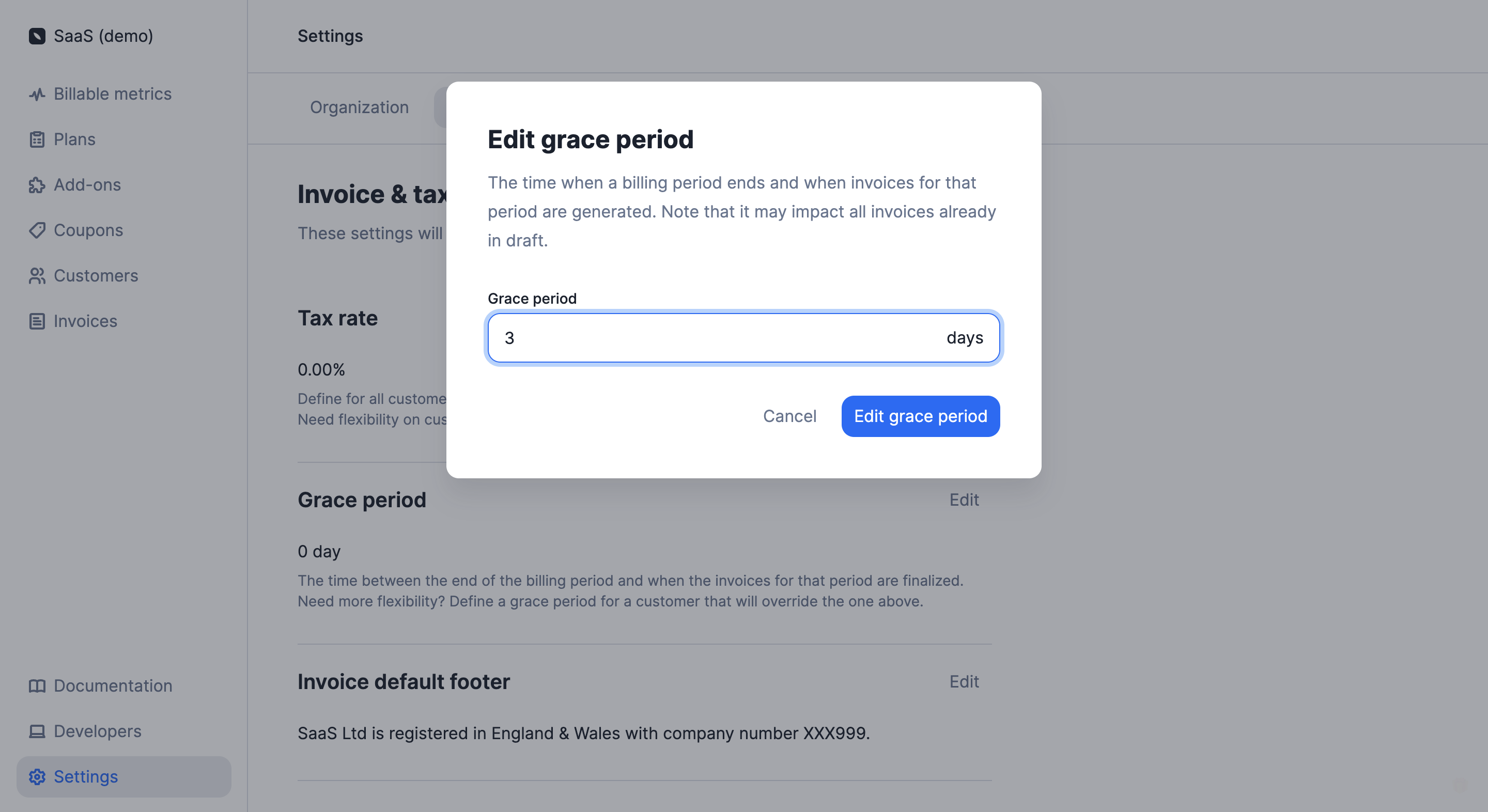
To define a grace period at organization level through the user interface:
Access the “Settings” section via the side menu;
Open the “Invoice” tab;
Click “Edit” in the “Grace period” section;
Enter the number of days associated with the grace period; and
Click “Edit grace period” to confirm.
Grace period in the settings of the app
If you shorten the organization’s grace period, some invoices in draft
status may be automatically finalized. For instance, if the initial grace
period was five days, but then three days into the grace period you decide to
reduce it to two days, then all draft invoices will automatically switch to
finalized.
You can also modify the organization’s grace period at any time through the API.
Define a grace period in days by using the invoice_grace_period argument in the billing_configuration object at an organization level.
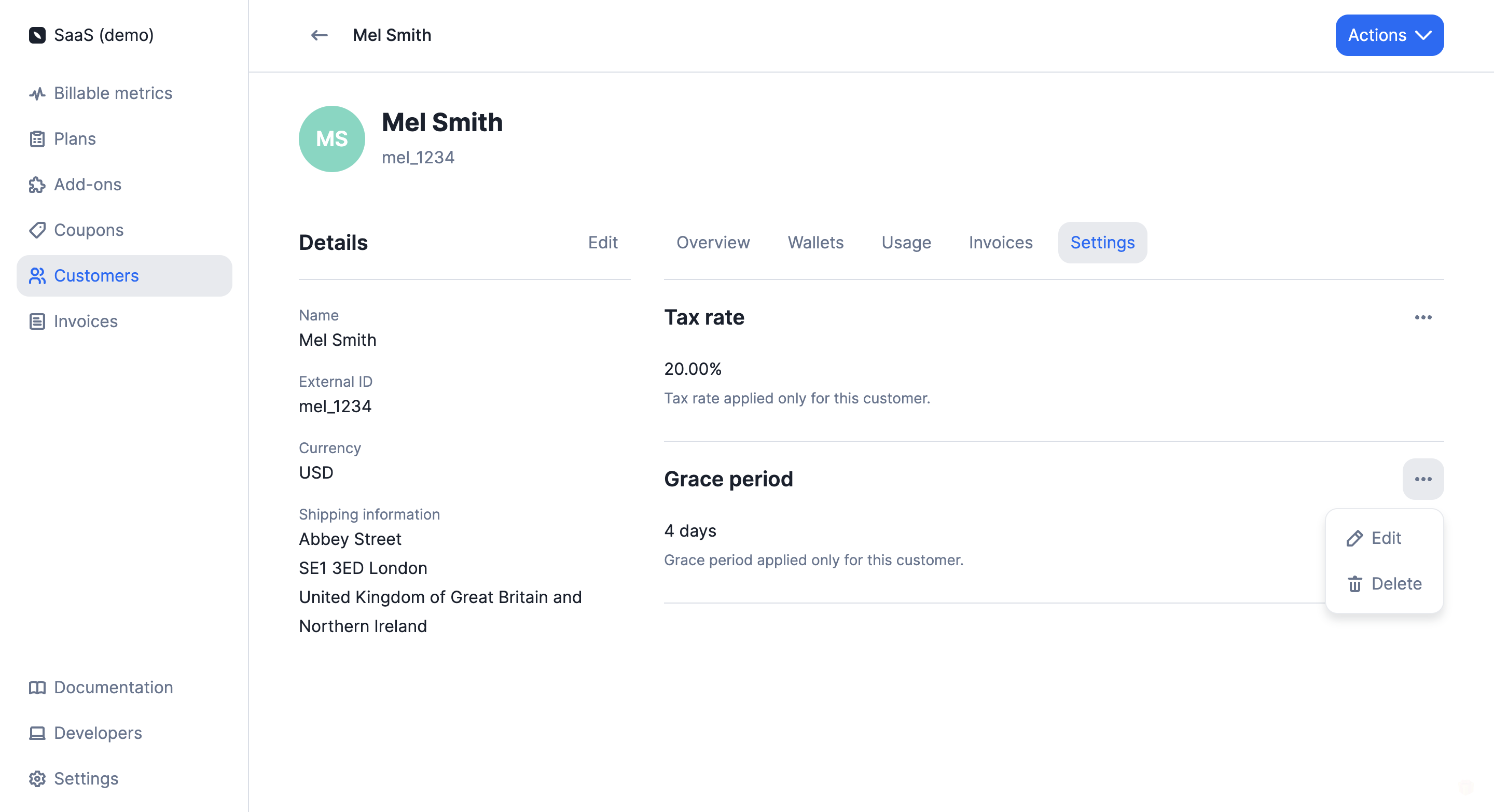
To define a grace period at customer level through the user interface:
Access the “Customers” section via the side menu;
Select a customer from the list;
Open the “Settings” tab of the customer view;
Click “Add grace period” in the “Grace period” section;
Enter the number of days associated with the grace period; and
Click “Add grace period” to confirm.
Grace period in the customer view
If you shorten the customer’s grace period, some invoices in draft status
may be automatically finalized. For instance, if the initial grace period
was five days, but then three days into the grace period you decide to reduce
it to two days, then all draft invoices will automatically switch to
finalized.
You can also modify the customer’s grace period at any time through the user interface or the API.
Define a grace period in days by using the invoice_grace_period argument in the billing_configuration object at a customer level.
The grace period applies to subscription invoices. It does not apply to
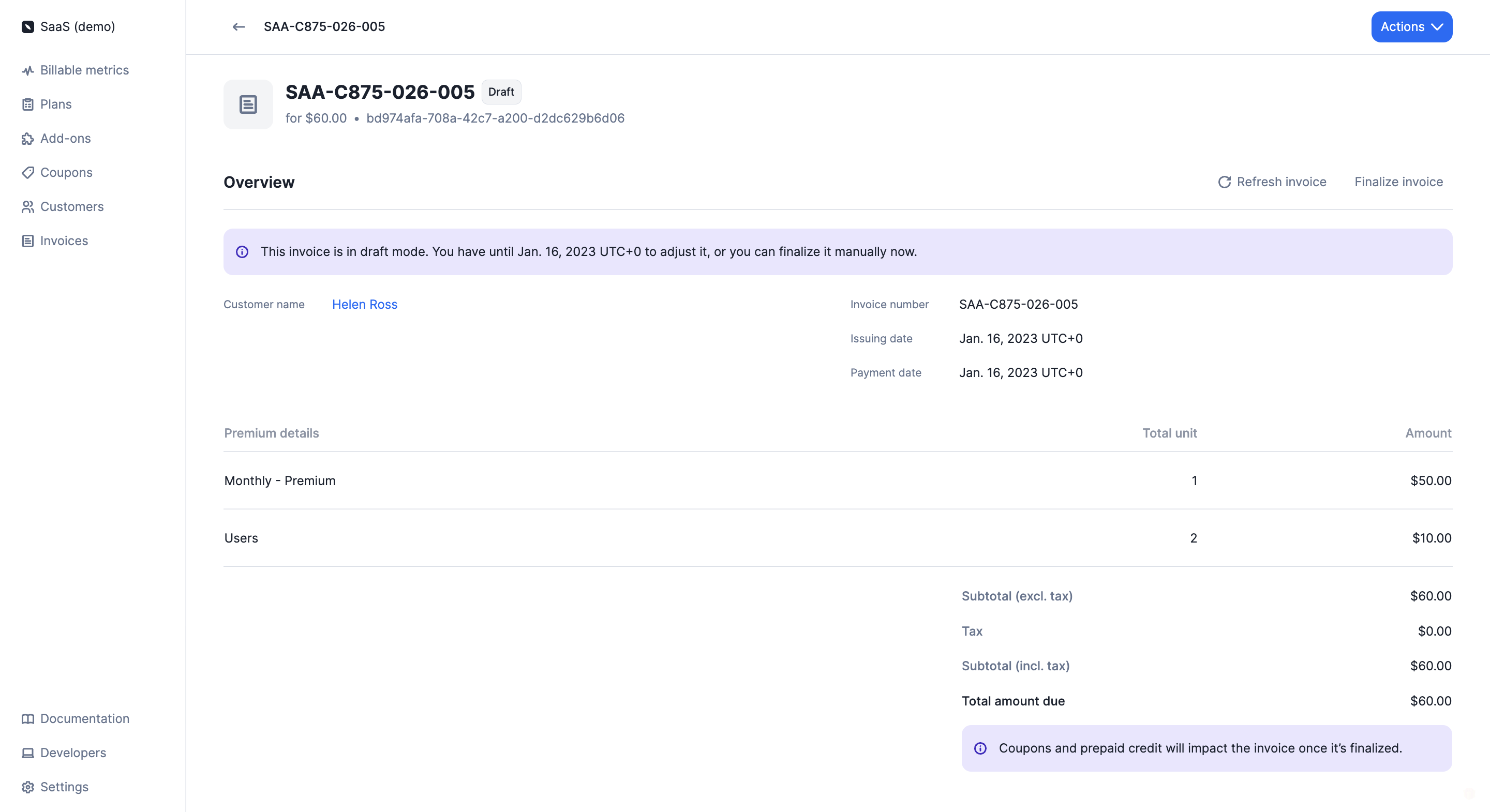
invoices related to add-ons or credit purchases.The creation of a draft invoice triggers the invoice.draftedwebhook.When a subscription invoice is in draft status, you can:
Add usage records by sending events with a timestamp within the relevant
billing period;
Edit a specific fee by adjusting the total amount or the total units;
Apply coupons to the customer’s account; and
Add credits to the customer’s wallet and credit note wallet.
In order to add usage to an invoice that is in draft status, the timestamp
of the events must be
within the billing period. Consider the following example:
The billing period started on January 1st and ended on January 31st. We have
defined a 3-day grace period and today is February 2nd.On February 1st, Lago automatically generated a draft invoice for the period
January 1st to January 31st.We want to send additional usage records for this invoice. To do so, the
timestamp of our events must be included in the period January 1st to January
31st.1673457300 (i.e. January 11th, 2023) is a valid timestamp, therefore the
event will be included in the draft invoice.However, 1675354500 (i.e. February 2nd, 2023) is outside the billing period
under consideration, therefore the event will not be included in the draft
invoice, it will be included in the next invoice.
After sending events, you can go to the invoice list and refresh the
corresponding draft invoice to ensure your new events have been taken into
account.When all changes have been made, you can either wait for the grace period to
expire (the invoice status will automatically switch to finalized) or you can
finalize the invoice manually through the user interface or the API.When an invoice is finalized, it can no longer be edited. Finalizing an
invoice triggers the invoice.created webhook.
Draft invoice in the Lago app
Coupons and credits that are applied/added during the grace period will not
appear on draft invoices but will be automatically deducted from the
customer’s next finalized invoice.